Blog

  • Quick Tip: Python Variables in Multithreaded Applications and Why Your Choice Matters

    When working with Python classes, you have two kinds of variables you can work with: class variables and instance variables. We won’t get deep into the similarities and differences here, nor various use cases for each kind. For that, I’ll refer you to this article. For our purposes here, just know that class variables and instance variables both have their own unique uses.

    In this post, we’ll be looking at one particular use case: using Python class and instance variables in multithreaded applications. Why does this matter? As with any programming language, choice of variable types can be critical to the success or failure of your application.

    With that in mind, let’s explore some of the options you have when working with Python variables in a multithreaded context. Knowing which option to choose can make all the difference.

    Class variables are declared at the top of your class and can be accessed by every object that belongs to this particular class (i.e., each instance shares a copy of each class variable); while on the other hand, instance variables use the indicator called “self” and are tied to a specific instance. Each instance of an object will have its own set of instance variables, but share the class variables.

    Class variables look like this:

    class obj:
      data = [0,0,0]
    Code language: Python (python)

    Instance variables look like this:

    class obj:
      def __init__(self):
        self.data = [0,0,0]
    Code language: Python (python)

    I recently ran into an issue with class vs. instance variables in a multithreaded application. A colleague of mine was debugging a UI application that was communicating on an interface and shipping the received data off to a UI for display. He found it would crash randomly, so we switched up the architecture a bit to receive data on one thread and then pass it through a queue to the UI thread to consume. This seemed to resolve the crash, but the data in the UI was wrong.

    Digging into the problem, we found that the data was changing as it passed through the queue. After some more digging, my colleague realized that the class that was implemented to push the data through the queue was utilizing class variables instead of instance variables.

    This simple program illustrates the issue:

    import queue
    import threading
    import time
    
    q1 = queue.Queue()
    
    class obj:
      id = 0
      data = [0,0,0]
    
    def thread_fn(type):
        d = q1.get()
        preprocessing = d.data
        time.sleep(3)
    
        # Check data members post "processing", after modified by other thread
        if preprocessing != d.data:
          print(f"{type}: Before data: {preprocessing} != After data: {d.data}")
        else:
          print(f"{type}: Before data: {preprocessing} == After data: {d.data}")
    
    if __name__ == "__main__":
        x = threading.Thread(target=thread_fn, args=("ClassVars",))
        obj.id = 1
        obj.data = [1,2,3]
        q1.put(obj)
    
        x.start()
    
        # Update the data
        obj.id = 2
        obj.data = [4,5,6]
        q1.put(obj)
    
        x.join()
    Code language: Python (python)

    Essentially what was happening is that the data would be received on the interface (in this case the main function) and put into the queue. As the UI was getting around to processing said data, new data would be received on the interface and put it into the queue. Since class variables were used originally (and the class object was used directly), the old data got overwritten with the new data in the class and the UI would have the wrong data and generate errors during processing.

    Once the underlying message class was changed to use instance variables, the “bad data” issue went away and the original problem of the crashing application was also resolved with the architecture change. Take a look at the difference in this program:

    import queue
    import threading
    import time
    
    q1 = queue.Queue()
    
    class obj:
      def __init__(self):
        self.id = 0
        self.data = ['x','y','z']
    
    def thread_fn(type):
        d = q1.get()
        preprocessing = d.data
        time.sleep(3)
    
        # Check data members post "processing", after modified by other thread
        if preprocessing != d.data:
          print(f"{type}: Before data: {preprocessing} != After data: {d.data}")
        else:
          print(f"{type}: Before data: {preprocessing} == After data: {d.data}")
    
    if __name__ == "__main__":
        x = threading.Thread(target=thread_fn, args=("InstanceVars",))
        obj1 = obj()
        obj1.id = 1
        obj1.data = [1,2,3]
        q1.put(obj1)
    
        x.start()
    
        # Update the data
        obj2 = obj()
        obj2.id = 2
        obj2.data = [4,5,6]
        q1.put(obj2)
    
        x.join()
    Code language: Python (python)

    As you can see, using instance variables requires that we create an instance of each object to begin with. This ensures that each object created has its own data members that are independent of the other instances, which is exactly what we required in this scenario. This single change along would have likely cleaned up the issues we were seeing, but would not have fixed the root of the problem.

    When passing through the queue, the thread would get each instance and use the correct data for processing. Nothing in the thread function had to change; only how the data feeding it was set up.

    Python is a great language, but it definitely has its quirks. The next time you hit a snag while trying to parallelize your application, take a step back and understand the features of your programming language. Understanding the peculiarities of your chosen language is the mark of a mindful programmer! With a bit of space to gather your wits and some careful, conscious coding, you can avoid these pesky pitfalls and create fast, reliable threaded applications. What other Python nuances have bitten you in the past? Let us know in the comments below!

  • Quick Tip: Its Time to Avoid the Frustration of Single Return Types in C++

    When designing a new API one of the things I put a lot of thought into is how the user will know if the API call was successful or not. I don’t want to levy large error checking requirements on my users, but in C/C++ you can only return a single data type, so many APIs will pass the real output back through a referenced argument in the function prototype and a simple Boolean or error code as the return value. I find this clunky and hard to document, so I dug my heels in to find a better way.

    std::tuple and std::tie are two useful C++ features that can help you return multiple values from a function. std::tuple is a container that holds a tuple of values, while std::tie allows you to tie objects together so that they can be accessed as if they were one object. In this post, we’ll take a look at how to use these two features to make returning multiple values from a function easier.

    std::tuple and std::pair

    std::tuple (and std::pair) are C++ templates that allow you to combine two or more objects together and pass them around as if they were one. They are the clear choice for combining multiple outputs from a function into a single return data type. This creates clean, self-documenting code that is easy for a user to understand and follow.

    For example, let’s say we were dealing with a factory that created our objects. We’d have a creation method that looks something like this:

    std::shared_ptr<Object> MyFactory::create()
    {
      return std::make_shared<Object>();
    }
    Code language: C++ (cpp)

    One shortcoming here is that the create function does not to any error checking whatsoever, putting the entire burden on the user.

    A (slightly) improved version of the create method could be:

    bool MyFactory::create(std::shared_ptr<Object> &p)
    {
      p = std::make_shared<Object>();
      if (!p) return false;
      return true;
    }
    Code language: C++ (cpp)

    The user can now easily check the return value to determine whether or not the object was created successfully and perform additional processing. However, now they have to create the shared_ptr<T> object before calling the create function; and in addition to that, they also have to understand the argument p is not an input parameter, but rather they output parameter they are after in the first place.

    Instead, let’s make use of a std::pair to return both the created object as well as whether creation was successful.

    std::pair<std::shared_ptr<Object>, bool> MyFactory::create()
    {
      auto p = std::make_shared<Object>();
      return std::make_pair(p, !!p); // !!p same as static_cast<bool>(p) or 'if (p)'
    }
    Code language: C++ (cpp)

    How is this better? You may look at this and think that the user still has to grab the success value from the pair and that is absolutely correct. In this trivial case, creation is just a couple of lines. However, in a real-world scenario your function will likely be much more complex with many more errors to handle. Now, instead of levying that requirement on your user, you have captured all the error handling logic (and maybe reporting) internally. The user just has to check whether the returned data is valid or not via the Boolean in the pair.

    You can also just as easily extend this to return multiple values in a std::tuple:

    std::tuple<UUID, std::string, bool> createMsg(const std::string &msg, const int id)
    {
      UUID uuid = makeNewUUID();
      std::string outputmsg = std::to_string(id) + ": " + msg;
      return std::make_tuple(uuid, outputmsg, isUUIDValid(uuid));
    }
    Code language: C++ (cpp)

    Using std::tie to Access Return Values

    To access multiple return values, std::tie comes to the rescue. std::tie “ties” variable references together into a std::tuple. Accessing your multiple return values becomes straightforward at this point:

    // Factory Example
    std::shared_ptr<Object> obj;
    bool objvalid{false};
    std::tie(obj, objvalid) = MyFactory::create();
    if (objvalid) obj.work();
    
    // Message Example
    UUID lUuid;
    std::string msg;
    bool msgvalid{false};
    std::tie(lUuid, msg, msgvalid) = createMsg("Test message", 73);
    if (msgvalid) std::cout << lUuid << ": " << msg << std::endl;
    Code language: C++ (cpp)

    Conclusion

    The C++ Core Guidelines make it clear that passing back a std::tuple (or std::pair) is the preferred way to return multiple return values. It is also clear that if there are specific semantics to your return value that a class or structure object is best.

    std::tuple and std::pair provide a nice way to return multiple values from a function without having to resort to ugly workarounds. By using std::tie, we can make receiving the return value a breeze. What do you think? How will you use this in your next project?

  • Quick Tip: Improve Code Readability By Using C++17’s New Structured Bindings

    C++17 introduced a language feature called “structured bindings” which allows you to bind names to elements of another object easily. This makes your code more concise and easier to read, and also drives down maintenance costs. In this quick tip, we’ll take a look at how structured bindings work and give some examples of how you might use them in your own programs.

    Accessing std::tuple

    std::tuple is an extremely useful way to quickly combine multiple objects into a single object. I have used this often to combine various items that I want to serialize into a single byte stream for transmission somewhere (typically using MessagePack, for example see my code in the zRPC library). You can also use them effectively to return multiple values from a function (similar to std::pair, which is basically just a tuple of two objects).

    When using std::tuple the canonical way of gaining access to the members of the tuple is to use std::get<T> like so:

    // Given std::tuple<int, std::string, ExampleObject>
    const int i = std::get<0>(tpl);
    const std::string s = std::get<1>(tpl);
    const ExampleObject o = std::get<2>(tpl);
    Code language: C++ (cpp)

    This always felt clunky to me, yet the benefits of tuples were tremendous, so I just dealt with it.

    Structured Binding Approach

    Fast-forward to the C++17 standard and the ability to use structured bindings. These allow you to tie names to elements of any object, std::tuple included! Now, your access to the tuple becomes a single line:

    // Given std::tuple<int, std::string, ExampleObject>
    const auto [i,s,o] = tpl; // decltype(i) = int
                              // decltype(s)=std::string
                              // decltype(o)=ExampleObject
    Code language: C++ (cpp)

    So much cleaner and easier for the developer to read and follow!

    You can also get fancy with dealing with multiple return values from a function (see C++ Core Guidline F.21):

    ExampleObject obj;
    bool success{false};
    
    // Use structured binding to get object and success value
    // If creation succeeds, then process it
    if (auto [obj, success] = createObject(); success) processObject(obj);
    Code language: C++ (cpp)

    Structured bindings are a great new feature in C++17. They make your code more readable and maintainable, and they’re easier to parse for humans. I think you’ll find that they make your life a lot easier. What are some ways you see yourself using them in your own code?

  • 10 Easy Commands You Can Learn To Improve Your Git Workflow Today

    If you’re a developer, coder, or software engineer and have not been hiding under a rock, then you’re probably familiar with Git. Git is a distributed version control system that helps developers track changes to their code and collaborate with others. While Git can be a bit complex (especially if used improperly), there are some easy commands you can learn to improve your workflow. In this blog post, we’ll walk you through 10 of the most essential Git commands.

    TL;DR

    The commands we address in this post are:

    1. git config
    2. git clone
    3. git branch / git checkout
    4. git pull
    5. git push
    6. git status / git add
    7. git commit
    8. git stash
    9. git restore
    10. git reset

    It is assumed that you have basic knowledge of what the terms like branch, commit, or checkout mean. If not, or you really want to get into the nitty-gritty details, the official Git documentation book is a must-read!

    Setup and Configuration

    First things first – to get started with Git you need to get it installed and configured! Any Linux package manager today is going to have Git available:

    # APT Package Manager (Debian/Ubuntu/etc.)
    sudo apt install git
    
    # YUM Package Manager (RedHat/Fedora/CentOS/etc.)
    sudo yum install git
    
    # APK Package Manager (Alpine)
    sudo apk add gitCode language: PHP (php)

    If you happen to be on Windows or Mac, you can find a link to download Git here.

    Once you have Git installed, it’s time to do some initial configuration using the command git config. Git will store your configuration in various configuration files, which are platform dependent. On Linux distributions, including WSL, it will setup a .gitconfig file in your user’s home directory.

    There are two things that you really need to setup at first:

    1. Who you are
    2. What editor you use

    To tell git who you are so that it can tag your commits properly, use the following commands:

    $ git config --global user.name "<Your Name Here>"
    $ git config --global user.email <youremail>@<yourdomain>Code language: HTML, XML (xml)

    The –global option tells git to store the configuration in the global configuration file, which is stored in your home directory. There are times when you might need to use different email addresses for your commits in different respositories. To set that up, you can run the following command from the git repository in question:

    $ git config user.email <your-other-email>@<your-other-domain>Code language: HTML, XML (xml)

    To verify that you have your configuration setup properly for a given repo, run the following command:

    $ git config --list --show-originCode language: PHP (php)

    Finally, to setup your editor, run the following command:

    $ git config --global core.editor vimCode language: PHP (php)

    Working With Repositories

    In order to work with repositories, there are a few primary commands you need to work with — clone, branch, checkout, pull, and push.

    Cloning

    git clone is the command you will use to pull a repository from a URL and create a copy of it on your machine. There are a couple protocols you can use to clone your repository: SSH or HTTPS. I always prefer to set up SSH keys and use SSH, but that is because in the past it wasn’t as easy to cache your HTTPS credentials for Git to use. Those details are beyond the scope of this post, but there is plenty of information about using SSH and HTTPS here.

    To clone an existing repository from a URL, you would use the following command:

    $ git clone https://github.com/jhaws1982/zRPC.gitCode language: PHP (php)

    This will reach out to the URL, ask for your HTTPS credentials (if anonymous access is not allowed), and then download the contents of the repository to a new folder entitled zRPC. You can then start to work on the code!

    Sometimes a repository may refer to other Git repositories via Git submodules. When you clone a repository with submodules, you can save yourself a separate step to pull those by simply passing the --recursive option to git clone, like so:

    $ git clone --recursive https://github.com/jhaws1982/zRPC.gitCode language: PHP (php)

    Branches

    When working with Git repositories, the most common workflow is to make all of your changes in a branch. You can see a list of branches using the git branch command and optionally see what branches are available on the remote server:

    $ git branch         # list only your local branches
    $ git branch --all   # list all branches (local and remote)Code language: PHP (php)

    To checkout an existing branch, simply use the git checkout command:

    $ git checkout amazing-new-feature
    Switched to branch 'amazing-new-feature'
    Your branch is up to date with 'origin/amazing-new-feature'.Code language: JavaScript (javascript)

    You can also checkout directly to a new branch that does not exist by passing the -b option to git checkout:

    $ git checkout -b fix-problem-with-writer
    Switched to a new branch 'fix-problem-with-writer'Code language: JavaScript (javascript)

    Interacting with the Remote Server

    Let’s now assume that you have a new bug fix branch in your local repository, and have committed your changes to that branch (more on that later). It is time to understand how to interact with the remote server, so you can share your changes with others.

    First, to be sure that you are working with the latest version of the code, you will need to pull the latest changes from the server using git pull. This is best done before you start a branch for work and periodically if other developers are working in the same branch.

    $ git pull

    This will reach out to the server and pull the latest changes to your current branch and merge those changes with your local changes. If you have files that have local changes and the pull would overwrite those, Git will notify you of the error and ask you to resolve it. If there are no conflicts, then you are up-to-date with the remote server.

    Now that you are up-to-date, you can push your local commits to the remote server using git push:

    $ git push

    git push will work as long as the server has a branch that your local one is tracking. git status will tell you whether that is the case:

    $ git status
    On branch master
    Your branch is up to date with 'origin/master'.
    
    nothing to commit, working tree cleanCode language: JavaScript (javascript)
    $ git status
    On branch fix-problem-with-writer
    nothing to commit, working tree cleanCode language: JavaScript (javascript)

    If you happen to be on a local branch with no remote tracking branch, you can use git push to create a remote tracking branch on the server:

    $ git push -u origin fix-problem-with-writerCode language: JavaScript (javascript)

    Working with Source Code

    Git makes it very easy to work with your source code. There are a few commands that are easy to use and make managing code changes super simple. Those commands are: status, add, commit, stash, and reset.

    Staging Your Changes

    To stage your changes in Git means to prepare them to be added in the next commit.

    In order to view the files that have local changes, use the git status command:

    $ git status
    On branch fix-problem-with-writer
    Changes not staged for commit:
      (use "git add <file>..." to update what will be committed)
      (use "git restore <file>..." to discard changes in working directory)
            modified:   CMakeLists.txt
            modified:   README.md
    
    no changes added to commit (use "git add" and/or "git commit -a")Code language: Bash (bash)

    Once you are ready to stage your changes, you can stage them using git add:

    $ git add README.md

    If README.md has a lot of changes, and you want to separate them into different commits? Just pass the -p option to git add to add specific pieces of the patch.

    $ git add -p README.md
    $ git status
    On branch fix-problem-with-writer
    Changes to be committed:
      (use "git restore --staged <file>..." to unstage)
            modified:   README.md
    
    Changes not staged for commit:
      (use "git add <file>..." to update what will be committed)
      (use "git restore <file>..." to discard changes in working directory)
            modified:   CMakeLists.txt
    Code language: JavaScript (javascript)

    To commit these changes you have staged, you would use the git commit command:

    $ git commit

    Git commit will bring up an editor where you can fill out your commit message (for a good commit message format, read this; you can also read this for details on how to set up your Git command line to enforce a commit log format).

    You can also amend your last commit if you forgot to include some changes or made a typo in your commit message. Simply stage your new changes, then issue:

    $ git commit --amend

    Storing Changes For Later

    Git has a fantastic tool that allows you to take a bunch of changes you have made and save them for later! This feature is called git stash. Imagine you are making changes in your local branch, fixing bug after bug, when your manager calls you and informs you of a critical bug that they need you to fix immediately. You haven’t staged all your local changes, nor do you want to spend the time to work through them to write proper commit logs.

    Enter git stash. git stash simply “stashes” all your local, unstaged changes off to the side, leaving you with a pristine branch. Now you can switch to a new branch for this critical bug fix, make the necessary changes, push to the server, and jump right back into what you were working on before. That sort of flow would look like this:

    <working in fix-problem-with-writer>
    $ git status
    On branch fix-problem-with-writer
    Changes not staged for commit:
      (use "git add <file>..." to update what will be committed)
      (use "git restore <file>..." to discard changes in working directory)
            modified:   CMakeLists.txt
    
    no changes added to commit (use "git add" and/or "git commit -a")
    
    $ git stash
    Saved working directory and index state WIP on fix-problem-with-writer
    
    $ git status
    On branch fix-problem-with-writer
    nothing to commit, working tree clean
    
    $ git checkout fix-problem-with-reader
    Switched to branch 'fix-problem-with-reader'
    
    <make necessary changes>
    $ git add <changes>
    $ git commit
    $ git push
    
    $ git checkout fix-problem-with-writer
    Switched to branch 'fix-problem-with-writer'
    
    $ git status
    On branch fix-problem-with-writer
    nothing to commit, working tree clean
    
    $ git stash pop
    On branch fix-problem-with-writer
    Changes not staged for commit:
      (use "git add <file>..." to update what will be committed)
      (use "git restore <file>..." to discard changes in working directory)
            modified:   CMakeLists.txt
    
    no changes added to commit (use "git add" and/or "git commit -a")
    Dropped refs/stash@{0} (5e3a53d36338f1906e871b52d3c97236f139b75e)Code language: JavaScript (javascript)

    There are a couple of things to understand about git stash:

    • The stash is a stack – you can stash as much as you want on it and when you pop, you’ll get the last thing stashed
    • The stash will try to apply all the changes in the stash, and in the event of a conflict, will notify you of the conflict and leave the stash on the stack

    I run into the second bullet quite often, but it isn’t hard to fix. If I run into that sort of issue, it is usually simple conflicts that are easily addresses manually. Manually address the conflicts in the file, restore all staged changes from the git stash pop, and then drop the last stash.

    $ git stash pop
    Auto-merging CMakeLists.txt
    CONFLICT (content): Merge conflict in CMakeLists.txt
    The stash entry is kept in case you need it again.
    
    $ git status
    On branch fix-problem-with-writer
    Unmerged paths:
      (use "git restore --staged <file>..." to unstage)
      (use "git add <file>..." to mark resolution)
            both modified:   CMakeLists.txt
    
    no changes added to commit (use "git add" and/or "git commit -a")
    
    $ vim CMakeLists.txt   # manually edit and resolve the conflicts
    $ git status
    On branch fix-problem-with-writer
    Unmerged paths:
      (use "git restore --staged <file>..." to unstage)
      (use "git add <file>..." to mark resolution)
            both modified:   CMakeLists.txt
    
    no changes added to commit (use "git add" and/or "git commit -a")
    
    $ git restore --staged CMakeLists.txt
    
    $ git stash drop
    Dropped refs/stash@{0} (6c7d34915b38e5d75072eacee856fb427f916aa8)Code language: HTML, XML (xml)

    Undoing Changes or Commits

    There are often times when I need to undo the previous commit or I accidentally added the wrong file to my stage. When this happens it is useful to know that you have ways to back up and try again.

    To remove files from your staging area, you would use the git restore command, like so:

    $ git restore --staged <path to file to unstage>Code language: HTML, XML (xml)

    This will remove the file from your staging area, but your changes will remain intact. You can also use restore to revert a file back to the version in the latest commit. To do this, simply omit the --staged option:

    $ git restore <path to file to discard all changes>Code language: HTML, XML (xml)

    You can do similar things with the git reset command. One word of caution with the git reset command — you can truly and royally mess this up and lose lots of hard work — so be very mindful of your usage of this command!

    git reset allows you to undo commits from your local history — as many as you would like! To do this, you would use the command like so:

    $ git reset HEAD~n
    
    # For example, to remove 3 commits
    $ git reset HEAD~3
    Unstaged changes after reset:
    M       CMakeLists.txt
    M       tests/unit.cppCode language: PHP (php)

    The HEAD~n indicates how many commits you want to back up, replacing n with the number you want. With this version of the command, all the changes present in those commits are placed in your working copy as unstaged changes.

    You can also undo commits and discard the changes:

    $ git reset --hard HEAD~n
    
    # For example, to discard 1 commit
    $ git reset --hard HEAD~1
    HEAD is now at 345cd79 fix(writer): upgrade writer to v1.73Code language: PHP (php)

    So there you have it – our top 10 Git commands to help improve your workflow. As we have mentioned before, when you take the time to understand your language and tools, you can make better decisions and avoid common pitfalls! Improving your Git workflow is a conscious decision that can save you a lot of time and headaches! Do you have a favorite command that we didn’t mention? Let us know in the comments below!
  • 6 Tips for an Absolutely Perfect Little Code Review

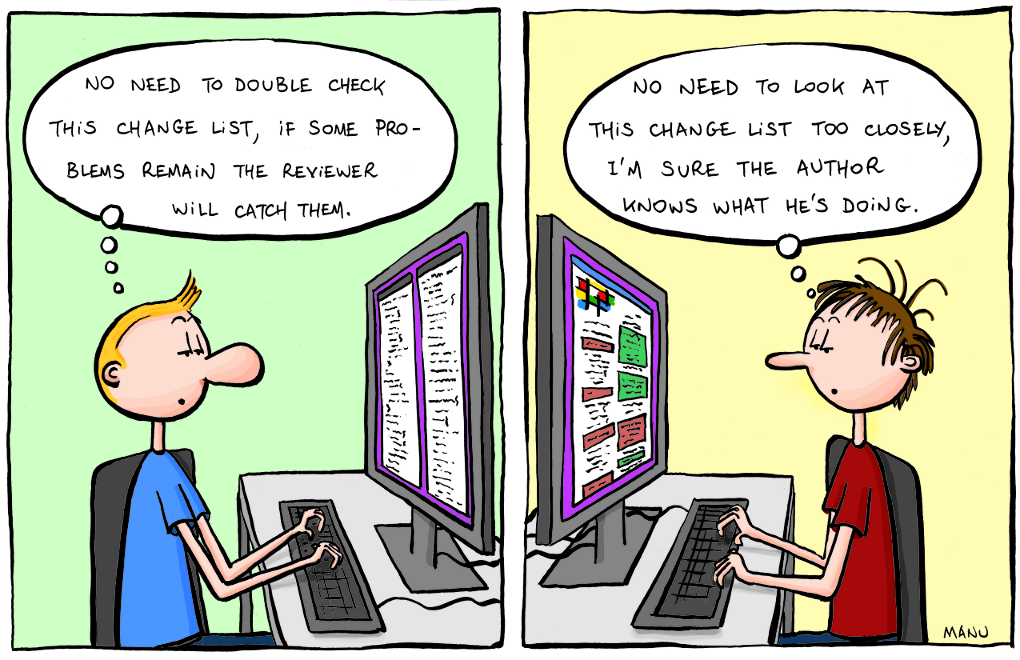
    Code reviews are an important part of the software development process. They help ensure that code meets certain standards and best practices, and they can also help improve code quality by catching errors early on. However, code reviews can also be a source of frustration for developers if they’re not done correctly.

    Image Credit Manu Cornet @ Bonker’s World

    As a code reviewer, your job is to help make the code better. This means providing clear and concise feedback that helps the developer understand what works well and what needs improvement. A mindful, conscious approach to code reviews can yield incredible dividends down the road as you build not only a solid, reliable codebase; but strong relationships of trust with your fellow contributors.

    Here are some initial guidelines or best practices for performing a great code review:

    • Read the code thoroughly before commenting. This will help you get a better understanding of what the code is supposed to do and how it works.
    • Be specific in your comments. If there’s something you don’t like, explain why. Simply saying “this doesn’t look right” or “I don’t like this” isn’t helpful.
    • Offer suggestions for how to improve the code. If you have a suggestion for how something could be done differently, provide details about the suggestion and even some links and other material to back it up.
    • Be respectful. Remember that the code you’re reviewing is someone else’s work. Criticizing someone’s work can be difficult to hear, so try to be constructive with your feedback. Respectful, polite, positive feedback will go a long way in making code review a positive experience for everyone involved.
    • Thank the developer for their work. Code reviews can be tough, so make sure to thank the developer for their efforts.

    Following these practices will help ensure that code reviews are a positive experience for both you and the developer whose code you’re reviewing.

    In addition to these, here are a few specifics I look for when performing a code review:

    0. Does the code actually solve the problem at hand?

    Sometimes when I get into code reviews I forget to check if the written software meets the requirements set forth. As you do your initial read-through of the code, this should be your primary focus. If the code does not solve the problem properly or flat out misses the mark, the rest of the code review is pointless as much of it will likely be rewritten. There’s nothing worse than spending an hour reviewing code only to find out later that it doesn’t work. So save yourself the headache and make sure the code compiles and does what it’s supposed to do before you start.

    1. Is the code well written and easy to read? Does the code adhere to the company’s code style guide?

    It’s important to format code consistently so that code reviews are easier to perform. Utilizing standard tools to format code can help ensure that code is formatted consistently. Additionally, the code should be reviewed according to a standard set of guidelines. Many formatters will format the code per a chosen (or configured) style, handling all the white space for you. Other stylistic aspects to look for are naming conventions on variables and functions, the casing of names, and proper usage of standard types.

    Structural and organizational standards are important as well. For example, checking for the use of global variables, const-correctness, file name conventions, etc. are all things to look out for and address at the time of the code review.

    Last of the color coding” by juhansonin is licensed under CC BY 2.0.

    2. Is the code well organized?

    Well-organized code is very subjective, but it is still something to look at. Is the structure easy to follow? As a potential maintainer of this code, are you able to find declarations and definitions where you would expect them? Is the module part of one monolithic file or broken down into digestible pieces that are built together?

    In addition, be sure to look out for adequate commenting in the code. Comments should explain what the code does, why it does it, and how it works, especially to explain anything tricky or out of the ordinary. Be on the lookout for spelling errors as well because a well-commented codebase rife with spelling errors looks unprofessional.

    3. Is the code covered by tests? Are all edge cases covered? What about integration testing?

    Anytime a new module is submitted for review, one of the first things I look for are unit tests. Without a unit test, I almost always reject the merge/pull request because I know that at some point down the road a small, insignificant change will lead to a broken module that cascades through countless applications. A simple unit test that checks the basic functionality of the module, striving for 100% coverage, can save so much time and money in the long term. Edge cases are tricky, but if you think outside the box and ensure that the unit test checks even the “impossible” scenarios, you’ll be in good shape.

    Integration tests are a different matter. In my line of work, integration testing must be done with hardware-in-the-loop and that quickly becomes cost-prohibitive. However, as integration tests are developed and a test procedure is in place, any and all integration tests must be performed before a change will be accepted; especially if the integration test was modified in the change!

    4. Are there any code smells?

    Common code smells I look out for are:

    • Code bloat: long functions (> 100 lines), huge classes
    • Dispensable code: duplication (what I look for the most), stray comments, unused classes, dead code, etc.
    • Complexity: cyclomatic complexity greater than 7 for a function is prime fodder for refactoring
    • Large switch statements: could you refactor to polymorphic classes and let the type decide what to do?

    Many other smells exist – too many to check in detail with each code review. For a great deep-dive I refer you to the Refactoring Guru. Many static analysis tools will check for various code smells for you, so be sure to check the reports from your tools.

    The presence of a code smell does not mean that the code must be changed. In some cases, a refactor would lead to more complex or confusing code. However, checking for various smells and flagging them can lead to discussions with the developer and produce a much better product in the end!

    5. Would you be happy to maintain this code yourself?

    One of the last things I check for during a code review is whether I would be okay to maintain this code on my own in the future. If the answer is no, then that turns into specific feedback to the developer on why that is the case. Maybe the structure is unclear, the general approach is questionable, or there are so many smells that it makes me nervous. Typically in cases like this, I find it best to give the developer a call (or talk with them in person) and discuss my misgivings. An open, honest discussion about the potential issues often leads to added clarity for me (and it’s no longer an issue) or added clarity for them and they can go fix the problem.

    These are just a few of the specific things I look for, but following the practices above will help make code reviews a positive experience for everyone involved. What are some best practices or tips you have found to lead to a good code review? Thanks for reading!

  • Setting Up Your git Environment for the CLI

    Updated 2023-03-10: The regular git-pre-commit-format hook script would not work with submodules properly. I have fixed this in my version, and it is uploaded to my repository. I have updated the link to point to this version, which is still 100% based on the original from barisione.

    Setting up your git environment in Linux may seem straight-forward and not a big deal; and while getting git installed and running is super easy, there are some tricks that will certainly make your life easier as a developer!

    Install git

    Every package manager for Linux that I am aware of is going to have a git package you can install. Depending on the package maintainers this will usually be a fairly recent version of git (v2.36.1 is the latest release as of this writing), but anything 2.26 or newer should be just fine.

    # APT Package Manager (Debian/Ubuntu/etc.)
    sudo apt install git
    
    # YUM Package Manager (RedHat/Fedora/CentOS/etc.)
    sudo yum install git
    
    # APK Package Manager (Alpine)
    apk add git
    Code language: Bash (bash)

    Basic git Configuration

    First off, you need to setup your basic git configuration, such as your name and your email address. This can be done on a per repository basis or globally. I typically have my work email setup globally and then configure a different email address for other repositories as required (i.e., my open source projects on GitHub).

    # Global Configuration
    git config --global user.name "Your Name"
    git config --global user.email "your_email@work.com"
    
    # Per Repository Configuration
    git config user.email "your_email@personal.com"
    
    # Or your GitHub no-reply email address
    git config user.email "YourID+username@users.noreply.github.com"
    Code language: Bash (bash)

    Storage Folders and Hooks

    I prefer to keep all my git repositories in one location, typically in my home directory somewhere like ~/git. When working in Windows (under WSL) I make sure that I clone my repositories inside the WSL environment, otherwise when working with the source (building, editing, etc.) there can be performance losses in the interaction between WSL and Windows.

    One of the first things I do when setting up my git environment is make sure I am setup with all the hooks I will need. As a C/C++ developer primarily, there really are only two that are a must have for me – my pre-commit format hook and my Conventional Commits hook (with Commitizen). To make setup of these easier, I wrote a script to easily install these hooks, which you can find here.

    mkdir -p ~/git/_globalhooks && cd ~/git/_globalhooks
    wget https://raw.githubusercontent.com/jhaws1982/git-hook-installer/master/git-hook-installer.sh
    
    chmod a+x git-hook-installer.sh
    Code language: Bash (bash)

    Auto Code-formatting Before Committing

    This is very useful to enforce a particular style for your repository.

    First, make sure clang-format is installed:

    sudo apt install clang-format
    Code language: Bash (bash)

    Pull the necessary scripts into your _globalhooks directory:

    wget https://raw.githubusercontent.com/barisione/clang-format-hooks/master/apply-format
    wget https://raw.githubusercontent.com/jhaws1982/git-hook-installer/master/git-pre-commit-format
    
    chmod a+x apply-format
    chmod a+x git-pre-commit-format
    Code language: Bash (bash)

    Finally, install the hook:

    ./git-hook-installer.sh git-pre-commit-format pre-commit <path-to-repository>
    Code language: Bash (bash)

    Now, every time you commit, your source code will be checked for proper formatting and fixed automatically if you approve.

    Conventional Commit Enforcement

    By setting up a git hook to walk you through writing a proper commit log, you can make sure that your history is very readable! Commitizen makes this super easy and you can customize the template as you see fit. I prefer to follow Conventional Commits, and the setup for that is described here:

    # Install npm, commitizen, and template for Conventional Commits
    sudo apt install npm
    npm install -g commitizen
    npm install -g cz-conventional-changelog
    echo '{ "path": "cz-conventional-changelog" }' > ~/.czrc
    
    # Create the git hook
    cat >> ~/git/_globalhooks/commitizen-commit-msg
    #!/bin/bash
    exec < /dev/tty && $HOME/.npm-global/bin/cz --hook || true
    ^EOF
    Code language: Bash (bash)

    Finally, install the hook:

    ./git-hook-installer.sh commitizen-commit-msg prepare-commit-msg <path-to-repository>
    Code language: Bash (bash)

    Please note, that the above example assumes that you have cleared up any NPM permissions issues by following the manual steps as found here.

    Global Hooks

    With the hooks installed in the ~/git/_globalhooks directory, you can easily copy the hooks to a new machine. This enables you to get setup rather quickly. You can also use these hooks globally for all repositories if you so choose. I usually don’t because most repos don’t follow Conventional Commits or the same formatting rules. To apply hooks globally, specify the global flag to the script when installing the commit. This will set up the hook in a “global” folder of your choosing (I would choose ~/git/_globalhooks). It also adds the necessary configuration line to your git config to specify the path as the hookspath.

    ./git-hook-installer.sh -g git-pre-commit-format pre-commit ~/git/_globalhooks/
    
    git config --list
        core.hookspath=$HOME/git/_globalhooks/
    Code language: Bash (bash)

    Hopefully some of the tips I have found will help you out as you setup your environment from scratch or just update it with new settings!